TL;DR: 📹 Watch the Complete Video Tutorial 📺 Title: AI Art Like Never Before
📋 Table of Contents
Jump to any section (19 sections available)
📹 Watch the Complete Video Tutorial
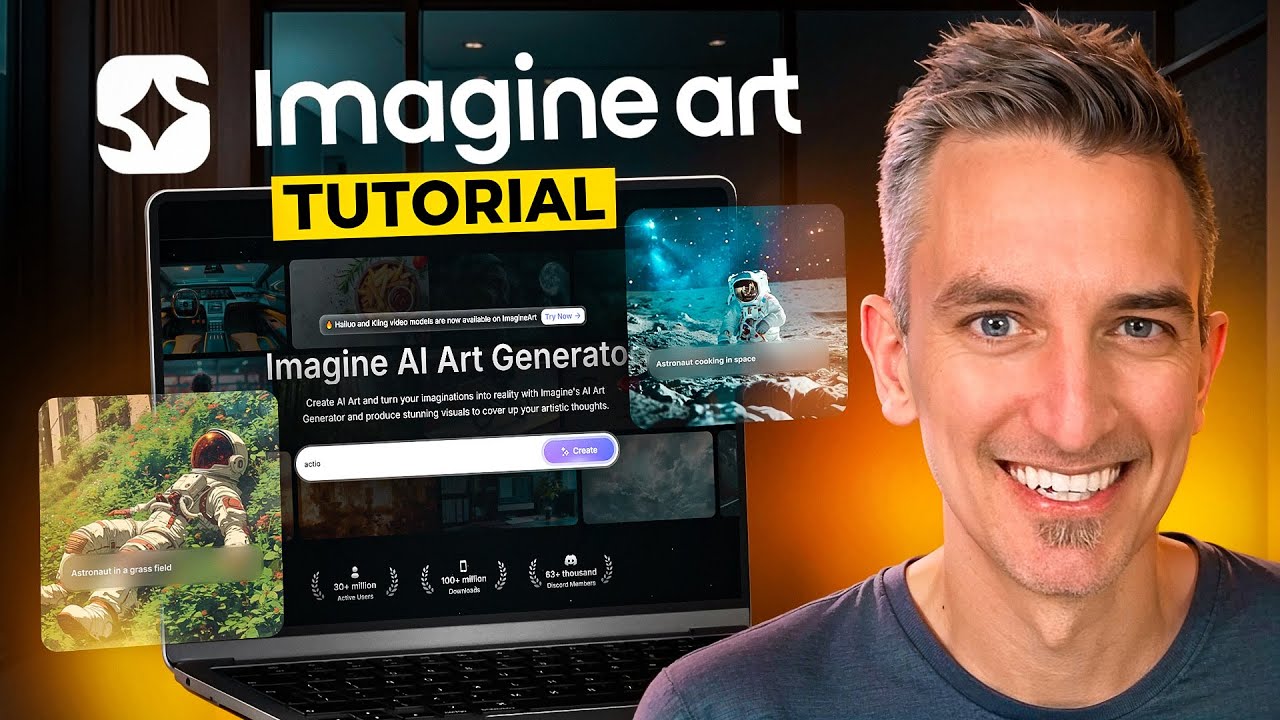
📺 Title: AI Art Like Never Before! Create AI Images & Videos with Imagine Art
⏱️ Duration: 1913
👤 Channel: Blog With Ben
🎯 Topic: Art Like Never
💡 This comprehensive article is based on the tutorial above. Watch the video for visual demonstrations and detailed explanations.
Have you ever dreamed of creating stunning AI-generated images with just a few words—or even bringing those images to life through animation and professional editing? In this comprehensive guide, we’ll walk you through Imagine Art, a powerful AI platform that makes generating, editing, and animating visual content easier than ever before.
Whether you’re a digital artist, marketer, content creator, or simply an AI enthusiast, Imagine Art offers a suite of intuitive tools that empower you to produce high-quality visuals without needing advanced design skills. Based entirely on the official tutorial transcript, this article unpacks every feature, workflow, tip, and hidden gem mentioned—so you can start creating Art Like Never before.
Getting Started with Imagine Art: Sign Up & Dashboard Overview
Imagine Art is completely free to begin with. To get started:
- Visit imagine.art
- Click the Sign In button in the upper-right corner
- Create a free account using:
- Email + password
- Discord
Once signed in, you’ll land on your Imagine Art Home Dashboard—your central hub for all creative activities.
Dashboard Navigation Breakdown
The dashboard is intuitively organized to help you access tools, manage settings, and explore community content:
Left Sidebar Menu
- Studios: Hubs for AI-powered tools including image, video, sketch, and (as of March 2025) music generation. Note: Music Studio requires a waitlist.
- Subscription Management: Upgrade or view your current plan
- API Integration: Configure developer access if needed
Center Panel (Home View)
- Quick-access buttons to all Studios
- Explore Section: Browse, download, and reuse AI-generated images, videos, and prompts created by the Imagine Art community. Click any asset to view its original prompt and image details—perfect for learning and remixing.
Upper-Right Icons
- Credit Monitor: Tracks your token balance. Every action (image generation, editing, animation) consumes tokens.
- Upgrade Button: Access paid subscription plans for more credits and features
- Avatar Menu: Links to Terms, Privacy Policy, and social media
Lower-Right Corner
- Chat Bubble Icon: Opens the Help & Messaging app. You can search the knowledge base or chat live with support via instant messenger.
Creating Your First AI-Generated Image with PhotoGen Studio
To begin generating images, navigate to the PhotoGen Studio via the left sidebar under “Studios.”
Inside PhotoGen, you’ll see two main options:
- Quick Prompt Generator: Enter a basic prompt and click “Generate.” Fast, but limited control.
- Advanced Image Tools: A suite of specialized generators (e.g., Text-to-Image, Image-to-Image, Sketch-to-Image). Access depends on your subscription level.
For this guide, we’ll focus on the Text-to-Image tool—the core engine for creating visuals from text prompts.
Text-to-Image Interface Tour
Once you select Text-to-Image, you’ll see a clean, functional interface:
- Left Sidebar: Configuration settings to fine-tune your output (model, aspect ratio, effects, etc.)
- Bottom Prompt Field: Where you type your descriptive text
- Dice Icon (Left of Prompt): Generates a completely random prompt for inspiration
- Imagine Bot (Robot Icon): A built-in AI assistant that turns vague ideas into detailed prompts (covered in detail later)
- Image Display Area: Shows your generated images. Important: Images are session-based and may disappear after a page refresh unless downloaded.
Step-by-Step: Configuring Your AI Image Generation
Before typing your prompt, configure these key settings in the left sidebar:
1. Select Your AI Model
By default, the Flux model is selected. Click the model tab to browse the Model Library.
AI models are pre-trained algorithms that interpret your text prompt and generate images in specific styles. Each model excels in different areas:
| Model Type | Best For | Visual Characteristics |
|---|---|---|
| Flux / Flux Dev | Photorealism, portraits, landscapes | High detail, lifelike textures, natural lighting |
| Illustration | Cartoons, hand-drawn art, concept sketches | Line art, stylized forms, vibrant colors |
| Anime | Japanese-style animation, character art | Cel shading, expressive eyes, dramatic poses |
| Vector / Pixel / Cyberpunk | Niche aesthetics | Geometric precision, retro gaming, neon dystopia |
2. Choose Aspect Ratio
Determine your image dimensions:
- 1:1 – Square (ideal for social media, icons)
- 16:9 – Landscape (videos, banners)
- 2:3 – Vertical/portrait (mobile content, product shots)
- Other ratios available based on use case
3. Enable Enhanced Prompt (Optional)
Toggle the Enhanced Prompt switch to automatically enrich your input with additional descriptive details, improving output quality.
4. Apply Creative Effects
Three key effect categories give you granular control:
Styles
- Comic / Cartoon: Vibrant, exaggerated visuals
- Sketch / Illustration: Hand-drawn line art
- Cinematic / Dark Sci-Fi: Movie-still drama with depth
- Oil Painting / Watercolor: Mimics traditional media
Lighting
- Natural: Warm sunlight, soft glow (outdoor scenes)
- Studio: Crisp, controlled portrait lighting
- Other options include dramatic, neon, golden hour, etc.
Camera
- Portrait: Close-up with soft focus
- Wide Shot: Expansive context (landscapes, storytelling)
- Macro / Drone / Telephoto: Simulate real-world photography techniques
5. Advanced Settings
Expand this section to choose how many images to generate per batch (1–4). Note: More images = more tokens consumed.
Writing & Generating Your First Prompt
Enter a detailed text prompt in the bottom field. While brevity works, highly descriptive prompts yield more accurate and professional results.
Example Prompt Used in Tutorial:
“A close-up of a female subject with glowing eyes, wearing a futuristic silver outfit, standing in a neon-lit cyberpunk alley at night, rain falling, cinematic lighting, shallow depth of field”
Click Generate. On the Professional plan, images render in seconds—making Imagine Art one of the fastest text-to-image tools available.
Managing Your Generated Images
After generation, four images appear. Each includes action icons:
- Top Bar Icons:
- Edit prompt
- Regenerate with same settings
- Download all or delete
- Per-Image Hover Icons (Bottom Corners):
- Bottom-left: Download individual image
- Bottom-right:
- Open Image Editor
- Regenerate
- Edit prompt
Click any image to open a detailed view showing:
- Full prompt used
- Model and aspect ratio
- Quick actions: Photo Editor, Remove Background, Animate
- Enhancement tools: Upscale, Variate, Intensity (Subtle/Creative/Strong)
Using Imagine Bot: Your AI Prompt Engineer
Stuck on what to write? Use the Imagine Bot—a chat-based assistant that transforms simple ideas into rich, detailed prompts.
How to Use Imagine Bot
- Click the robot icon next to the prompt field
- Type a short idea (e.g., “enchanting elf with floral crown”)
- The bot generates a detailed prompt like:
“An ethereal elf with luminous green eyes, adorned with a crown of blooming cherry blossoms and ivy, standing in an enchanted forest at dawn, soft golden light filtering through ancient trees, hyper-detailed fantasy illustration, magical atmosphere” - Choose to:
- Click “Generate” directly in the chat, OR
- Copy the prompt and paste it into the main field to adjust models, styles, or settings first
This feature is invaluable for overcoming prompt writer’s block and learning effective prompt engineering through examples.
Exploring Different Models & Styles: Creative Experimentation
The tutorial demonstrates the power of swapping models and styles while keeping the prompt identical.
Example Workflow: Reptilian Human Portrait
- Original Prompt: “Human with reptilian head, dressed in black T-shirt, facing camera”
- First Output: Realistic photo using Flux model
- Second Output:
- Keep same prompt
- Change model to Illustration
- Apply Cartoon style
- Result: Stylized cartoon illustration of the same character
This flexibility allows you to generate multiple aesthetic versions of a single concept—ideal for branding, character design, or A/B testing visuals.
Image Guidance: Using Reference Images to Control Output
Imagine Art’s Image Guidance feature lets you influence new generations using an existing image as a reference. This is crucial for maintaining visual consistency across projects.
Prerequisites
- Only works with Realistic or Anime models
- Appears in the left sidebar once a compatible model is selected
How to Use Image Guidance
- Upload a reference image (drag & drop or file select)
- Choose a Mode:
- Reimagine: Create new scenes inspired by the reference
- Restructure: Apply the reference’s composition/structure to a new subject
- Face Portrait: Preserve facial likeness across generations
- Restyle: Transfer the visual style (e.g., texture, pattern) to a new object
- Adjust Strength Slider (0–100%) to control how heavily the AI follows the reference
- Enter your text prompt
- Click Generate
Real-World Examples from the Tutorial
Example 1: Restructure Mode
- Reference Image: Simple black-and-white logo
- Prompt: “An intersection in a metropolitan area with a grand monument in the middle and a marathon in the background”
- Result: The logo’s geometric structure was embedded into the cityscape layout
Example 2: Restyle Mode
- Reference Image: Zebra print pattern
- Prompt: “A stylish handbag made of soft leather with gold hardware on a wooden table, pastel background, soft sunlight”
- Result: The handbag was rendered with zebra-print texture while preserving shape, lighting, and context
These tools are game-changers for product design, fashion prototyping, and brand identity development.
Editing AI Images In-App with Imagine Art’s Built-In Editor
No need for Photoshop—Imagine Art includes a robust, browser-based Image Editor.
How to Access the Editor
- Hover over any generated image
- Click the first icon in the bottom-right corner (paintbrush symbol)
Editor Features
- Left Toolbar:
- Add shapes, text, images, or templates
- Top-Right Controls:
- Undo/Redo
- Zoom in/out
- Export
- Image-Specific Toolbar (click the image):
- Crop
- Filters
- Effects (e.g., glow, blur, vintage, duotone)
- Quick Reset Button: Reverts all edits to the original AI output
The editor is designed for both beginners and professionals, enabling rapid iteration without leaving the platform.
Animating Your AI Art: Bringing Images to Life
Imagine Art’s Animation feature transforms static images into short, dynamic videos—perfect for social media, ads, or immersive storytelling.
Animation Requirements
- Only available for images generated in 1:1, 9:16, or 16:9 aspect ratios
- Must be accessed from the Text-to-Image gallery
How to Animate an Image
- Click on any eligible image in your gallery
- In the right-side panel, click the Animate button under “Quick Actions”
- The AI processes the image and generates a 5-second animated video
- Download or share directly
While the transcript cuts off before showing the final animation, the feature is highlighted as a major differentiator for creating engaging digital content.
Managing Credits & Understanding Pricing
Every action in Imagine Art consumes tokens (credits). Your balance is visible in the top-right corner.
- Free Plan: Limited tokens per month—enough for experimentation
- Paid Subscriptions: Offer higher token allowances, faster queue priority, and access to advanced tools like animation and full editing
The tutorial mentions that Professional plan users experience near-instant image generation, while free users may face longer wait times during peak usage.
Community & Inspiration: The Explore Section
The Explore tab is a goldmine for learning and inspiration:
- Browse thousands of user-generated images and videos
- Click any asset to see the exact prompt, model, and settings used
- Download or “remix” the prompt to create your own version
This feature accelerates your learning curve by revealing what works in real-world scenarios.
Tips for Maximizing Your Workflow
Based on the tutorial, here are key best practices:
- Always download images immediately—they’re not saved permanently in-browser
- Start simple, then add detail: Begin with basic prompts, then layer in lighting, camera, and style effects
- Use Imagine Bot early to overcome creative blocks
- Experiment with Image Guidance for brand-consistent outputs
- Combine tools: Generate → Edit → Animate for full content pipelines
Use Cases Across Industries
Imagine Art serves diverse professionals:
| Industry | How They Use Imagine Art |
|---|---|
| Digital Artists | Concept art, character design, style exploration |
| Marketers | Social media visuals, ad creatives, A/B testing |
| Product Designers | Prototyping with Restyle mode (e.g., fabric, texture swaps) |
| Content Creators | Thumbnail art, animated shorts, blog visuals |
| Branding Agencies | Consistent visual identity using Image Guidance |
Troubleshooting Common Issues
The tutorial highlights a few key gotchas:
- Images disappear after refresh → Always download immediately
- Animation not available → Ensure your image uses 1:1, 9:16, or 16:9 ratio
- Image Guidance grayed out → Switch to Realistic or Anime model
- Slow generation → Upgrade to reduce queue time
Future Features to Watch
As of March 2025, Imagine Art is expanding into:
- Music Generation Studio (currently waitlist-only)
- Real-Time Generation (mentioned as unavailable even on Professional plan)
Stay updated via their social channels (accessible through your avatar menu).
Getting Help & Support
Stuck? Use the chat bubble icon in the lower-right corner to:
- Search the knowledge base
- Chat live with support via instant messenger
The platform is designed to be self-serve, but human help is available when needed.
Final Thoughts: Why Imagine Art Stands Out
Imagine Art isn’t just another AI image generator. It’s an end-to-end creative suite that combines:
- Blazing-fast text-to-image generation
- Advanced control via models, styles, and image guidance
- Professional in-app editing
- One-click animation
- Community-driven inspiration
Whether you’re creating a single social post or building a full visual campaign, Imagine Art gives you the tools to produce Art Like Never before—all in one place.
🚀 Ready to Create?
Visit imagine.art today—sign up for free and start generating your first AI masterpiece in under a minute.
Actionable Next Steps
- Create your free Imagine Art account
- Generate your first image using the Text-to-Image tool
- Experiment with the Imagine Bot for prompt ideas
- Try applying a different style to the same prompt
- Upload a reference image and test the Restyle mode
- Edit your favorite result in the built-in editor
- Animate a 1:1 image for Instagram or TikTok
With this guide, you now have everything you need to unlock the full potential of Imagine Art. Go create something amazing!