📋 Table of Contents
Jump to any section (16 sections available)
📹 Watch the Complete Video Tutorial
📺 Title: Every Way to Make an AI Video (Which is Best?)
⏱️ Duration: 1260
👤 Channel: Tao Prompts
🎯 Topic: Every Way Make
💡 This comprehensive article is based on the tutorial above. Watch the video for visual demonstrations and detailed explanations.
If you’ve ever tried making an AI video only to end up with something that falls short of your vision, you’re not alone—and it’s probably not your fault. According to experts, the issue isn’t your prompts. It’s that you’re likely using the wrong method for the type of video you want to create.
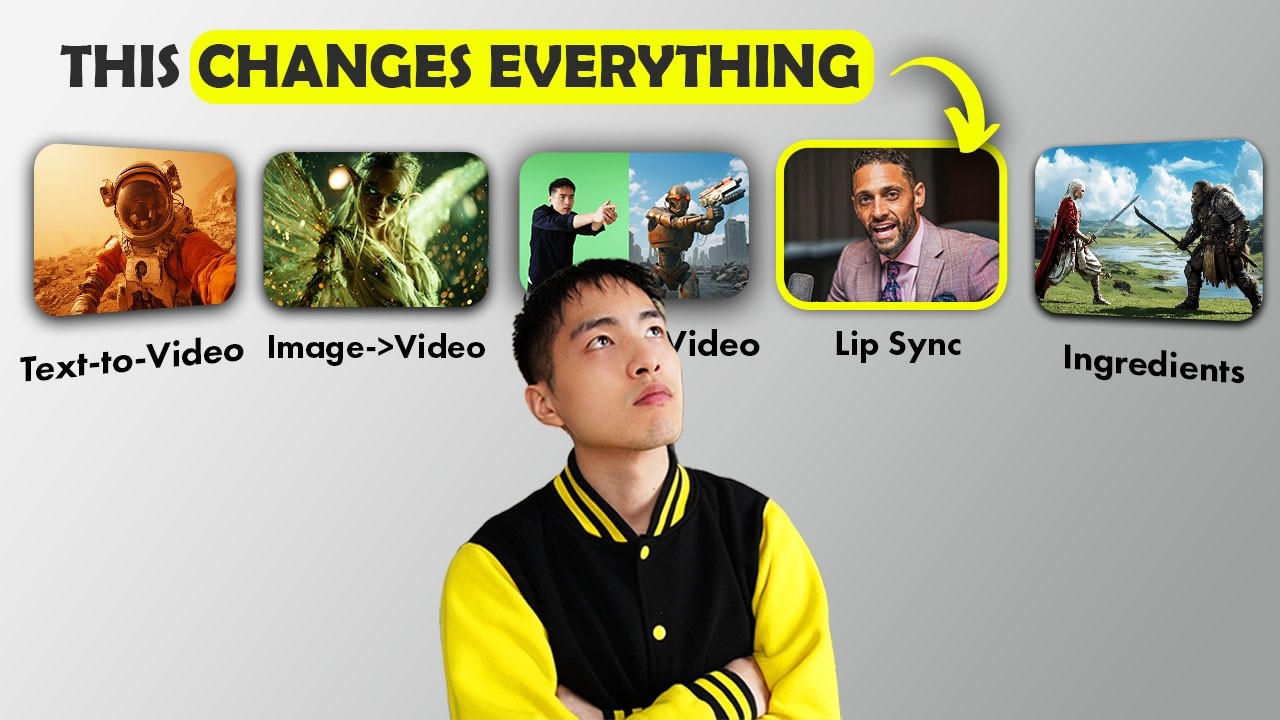
In this comprehensive guide, we break down every way to make an AI video—from simple text prompts to full motion capture performances—and reveal exactly which technique delivers the results you’re imagining. Whether you’re crafting cinematic sci-fi scenes, animated character dialogues, or dynamic action sequences, this guide covers all six methods in detail, complete with tools, prompts, real-world examples, and pro tips.
Method 1: Text-to-Video – Start with Words Alone
The most straightforward approach to AI video creation is text-to-video, where you generate a video using only a written prompt—no reference images or source footage required.
This method works best when your prompt includes three critical elements:
- Scene description (e.g., “a greenhouse habitat on a Mars colony”)
- Characters (e.g., “a female astronaut”)
- Action sequence (e.g., “hides behind a plant, fires a laser blaster, robot shatters with sparks”)
Crucially, you should structure your prompt as a timeline of events. For example:
“A space battle is happening inside a greenhouse habitat on a Mars colony. We see the astronaut hiding behind the plant. She then fires her laser blaster at a robot invader, and finally the robot shatters with sparks and crumbles.”
This chronological breakdown helps the AI model understand how to animate motion and transitions over time.
Best Tools for Text-to-Video
According to the transcript, the top-performing models include:
| Tool | Strengths | Limitations |
|---|---|---|
| Google Veo 3.1 | Excellent at character dialogue, highly prompt-accurate | Priced at up to $1 for an 8-second video |
| Sora 2.5 | High realism | Heavily censored and limited access |
Google’s AI Video Studio (Flow) offers a simple interface: just enter your detailed prompt into the prompt bar and generate.
Method 2: Image-to-Video – Animate from a Reference
When you need visual consistency—especially for characters or artistic styles—image-to-video is the superior choice. Here, you upload a reference image and use a text prompt to animate it.
Example use cases:
- Animating a photo of yourself with a goblin falling through your ceiling
- Bringing a custom-designed astronaut character to life in multiple scenes
- Preserving a distinct visual aesthetic (e.g., dark fantasy with green embers)
How to Maintain Character Consistency
To create a consistent character across multiple shots:
- Use an AI image generator like Nano Banana to create multiple stills of your character in different poses and environments (e.g., “female astronaut repairing a space rover in a Mars habitat”)
- Feed each image into an image-to-video generator to animate them individually
Advanced Technique: Timestamped Prompting
Google Veo supports timestamped prompting, allowing you to define actions at specific seconds:
0–3 seconds: Astronaut studies a glowing tablet; a hologram of a spacecraft appears.
3–6 seconds: Close-up on her furrowed brow—she looks concerned.
6–8 seconds: A low rumble shakes the habitat; lights flicker; she steadies herself.
In Google AI Studio, select “Image-to-Video,” upload your reference image (e.g., astronaut with tablet), and paste this structured prompt.
Start and End Frame Animation
One of the most powerful features in image-to-video is the start and end frame capability:
- Upload a first frame (e.g., goblin seen from behind)
- Upload a last frame (e.g., same goblin seen from the front)
- Add a prompt: “Animate a 180° orbiting motion around the character”
This also enables transformations—like a bear shaking off its fur and turning into an elf boy.
Best Tool for Start/End Frames: Cling AI offers the most reliable implementation of this feature.
Method 3: Video-to-Video – Motion Capture with Real Footage
For maximum control over movement and expression, video-to-video uses your real-world performance to drive an AI character. This is essentially AI-powered motion capture.
Workflow:
- Record yourself acting out a scene (e.g., talking, aiming a weapon)
- Generate an AI character image in the same pose (using Nano Banana or similar)
- Upload both your video and the AI image to a video-to-video tool
- Let the AI transfer your movements onto the digital character
Example dialogue from a generated scene:
“Okay, ‘planned’ is kind of a big word. I just saw a weak fuel route that was running light on guards, so I thought I’d take a little for myself.”
Top Tools for Video-to-Video
| Tool | Key Feature | Limitations |
|---|---|---|
| OneAnimate | AI Avatar + Photo Animate tools; supports up to 15-second clips | Backgrounds may warp or flicker; less stable than other methods |
| Luma Labs (Modify feature) | Transfers motion from real video to AI character | Requires matching start-frame pose in AI image |
Pro Tips for Success
- Keep your face clearly visible throughout the source video
- Avoid extremely fast movements—they confuse the AI tracker
- Break longer scenes into 15-second segments
- Use an AI voice changer to match the character’s personality
Method 4: Lip Sync – Bring AI Avatars to Life with Voice
When your goal is dialogue-driven content—films, music videos, explainer videos—lip sync is the most reliable method. You provide an audio file, and the AI animates a character’s mouth, facial expressions, and even body language to match.
Example output:
“What if I told you this entire video was made by AI? From the script to the visuals to the voice you’re hearing right now…”
Top Lip Sync Tools & Features
- Hun’s Avatar 4: Delivers realistic lip movements, facial expressions, and subtle mannerisms
- Dreamina’s Omnihuman 1.5: Allows characters to walk and talk simultaneously
- Dreamina’s Lip Sync Tool: Supports movement descriptions (e.g., “points finger while looking to the side”)
Multi-Character Control
Advanced lip sync tools can detect multiple characters in a single frame and animate only the one you specify:
- Character 1: Man at a bar
- Character 2: Woman speaking about her plant
- Character 3: Background extra
You can choose which one speaks—ideal for dialogue scenes.
Limitations to Watch For
- Hand animation is unreliable—hands may morph or change shape mid-speech
- Works with both spoken dialogue and sung vocals (e.g., “Even through the tears, I can see the dawn…”)
Method 5: Ingredients-to-Video – Combine Multiple Image Elements
This method—available in Google’s AI Video Studio—lets you upload multiple reference images (characters, props, backgrounds) and combine them into a single animated scene.
Example workflow:
- Upload three images: female soldier, orc captain, fantasy landscape
- Write a prompt: “Create a sword duel between the female warrior and the orc on the landscape”
- Generate the video
Another example:
- Images: green alien, service droid, spaceship kitchen
- Prompt: “The alien walks around the kitchen preparing a meal and complains about kitchen duty while the droid follows him”
“Kitchen duty. Really? Really?”
When to Use (and Avoid) Ingredients-to-Video
Pros:
- Fast way to assemble characters and environments
- No need to composite images manually
Cons:
- Results are often slow-paced and static
- Lacks dynamic camera movement or intense action
- Example failure: Attempting to animate a hover vehicle over a lake results in “hovering up and down” with no excitement
Better Alternative for Action Scenes
Instead of using ingredients-to-video for complex shots:
- Use Nano Banana to composite all elements (character, vehicle, environment) into a single, dynamic image
- Animate that composite using image-to-video
This yields far more cinematic and action-packed results.
Method 6: Chat-to-Edit – Modify Existing Videos with AI
Also known as AI video editing, this method lets you alter an existing video by changing environmental conditions, time of day, weather, or removing objects—using only text commands.
Example edits:
- Add a snowstorm to a medieval village scene
- Change time of day from afternoon to midnight
- Switch lighting to golden hour
- Remove unwanted objects (e.g., a wooden cart in the background)
How It Works (Using Runway ML)
- Upload your original video (e.g., a knight in a village)
- Access the “Apps” menu in the toolbar
- Select a preset: “Snow,” “Noon,” “Warm Light,” etc.
- Apply the effect (currently limited to the first 5 seconds)
Real-World Results & Limitations
While impressive, chat-to-edit has drawbacks:
- Changing time of day to “noon” may unintentionally alter the character’s uniform or facial appearance
- Object removal isn’t perfect—residual artifacts (e.g., wooden blocks, unnatural mist) may remain
- Best for subtle environmental changes, not complex scene overhauls
Tool Comparison: Which AI Video Generator Is Right for You?
| Method | Best Tool | Cost | Ideal For |
|---|---|---|---|
| Text-to-Video | Google Veo 3.1 | ~$1 / 8 sec | Quick concept videos, dialogue scenes |
| Image-to-Video | Google Veo 3.1 / Cling AI | $$ / $$$ | Consistent characters, artistic styles, transformations |
| Video-to-Video | OneAnimate / Luma Labs | Varies | Motion capture, performance-driven animation |
| Lip Sync | Hun Avatar 4 / Dreamina | Free–$ | Dialogue, music videos, talking avatars |
| Ingredients-to-Video | Google AI Video Studio | $$ | Rapid scene assembly with multiple elements |
| Chat-to-Edit | Runway ML | Credit-based | Environmental tweaks, object removal |
Pro Tips for Every AI Video Creator
- For dialogue-heavy scenes: Use Google Veo 3.1 (text-to-video) or Hun Avatar 4 (lip sync)
- For visual consistency: Always start with image generation (Nano Banana), then animate via image-to-video
- For dynamic action: Composite elements into one image first—don’t rely on ingredients-to-video
- For performance realism: Film yourself clearly, avoid fast motions, and use OneAnimate or Luma
- For stylistic control: Use timestamped prompts and start/end frames to dictate timing and camera movement
Common Pitfalls and How to Avoid Them
1. Inconsistent Characters
Solution: Never rely solely on text-to-video for recurring characters. Always generate reference images first.
2. Unstable Backgrounds in Video-to-Video
Solution: Use simple or blurred backgrounds in your source footage to minimize AI confusion.
3. Morphing Hands in Lip Sync
Solution: Frame your shot to minimize hand visibility, or use static hand poses.
4. Boring Motion in Ingredients-to-Video
Solution: Reserve this method for static or slow-paced scenes. For action, composite first.
Real Examples from the Transcript
The speaker demonstrates several fully realized AI video scenes:
- Mars Colony Dialogue: “There’s nothing typical about it. It’s a constant grind of research, maintenance, and training.” (Generated via text-to-video)
- Hydroponics Update: “The tomatoes are thriving in the new hydroponics bay.” (Showcasing Veo 3.1’s dialogue strength)
- Goblin Interruption: “Greetings from below.” (Image-to-video with personal photo)
- Kitchen Complaint: “Kitchen duty. Really? Really?” (Ingredients-to-video with alien, droid, and kitchen)
- Hope Tastes Like Oranges: A bar story with finger-pointing and nostalgic expression (Dreamina lip sync + movement)
Why Method Choice Matters More Than Prompt Engineering
Many creators blame poor results on “bad prompts,” but the transcript emphasizes a critical truth: each AI video method has inherent strengths and weaknesses. A perfect prompt won’t fix a mismatched method.
Example: Trying to create a high-speed hover vehicle chase using ingredients-to-video will fail—not because of the prompt, but because the method isn’t designed for dynamic motion.
Future of AI Video: Where We’re Headed
While current tools are powerful, the speaker notes that video-to-video and chat-to-edit are still less developed than text or image-based methods. Expect rapid improvements in:
- Background stability
- Hand and limb consistency
- Longer clip generation (beyond 15 seconds)
- Real-time editing capabilities
How to Level Up: From Beginner to Pro
The transcript concludes with a recommendation: follow a structured learning path. The speaker offers a tutorial that walks through five levels of AI video creation—from basic prompts to advanced compositing and motion design.
This staged approach ensures you master foundational methods before tackling complex workflows like video-to-video or multi-character lip sync.
Final Summary: Your AI Video Method Cheat Sheet
| Goal | Best Method | Tool Recommendation |
|---|---|---|
| Quick concept test | Text-to-Video | Google Veo 3.1 |
| Consistent character across scenes | Image-to-Video | Google Veo + Nano Banana |
| Realistic performance | Video-to-Video | OneAnimate or Luma Labs |
| Talking avatar / music video | Lip Sync | Hun Avatar 4 or Dreamina |
| Assemble multiple assets fast | Ingredients-to-Video | Google AI Studio |
| Edit existing footage | Chat-to-Edit | Runway ML |
Take Action: Start Creating Today
Now that you know every way to make an AI video, it’s time to match your vision to the right method. Don’t waste time tweaking prompts in the wrong workflow—choose your technique first, then refine.
Experiment with one method at a time. Master text-to-video before moving to image-to-video. Try lip sync before attempting full motion capture. And always remember: the most cinematic AI videos come not from the fanciest tool, but from the smartest method choice.
Ready to level up? Explore the five-level AI video tutorial mentioned in the transcript—and start building your one-person studio today.