📋 Table of Contents
Jump to any section (22 sections available)
📹 Watch the Complete Video Tutorial
📺 Title: How I Make Hollywood-Quality Videos With AI | Higgsfield Popcorn
⏱️ Duration: 390
👤 Channel: Zane Hoyer
🎯 Topic: Make Hollywoodquality Videos
💡 This comprehensive article is based on the tutorial above. Watch the video for visual demonstrations and detailed explanations.
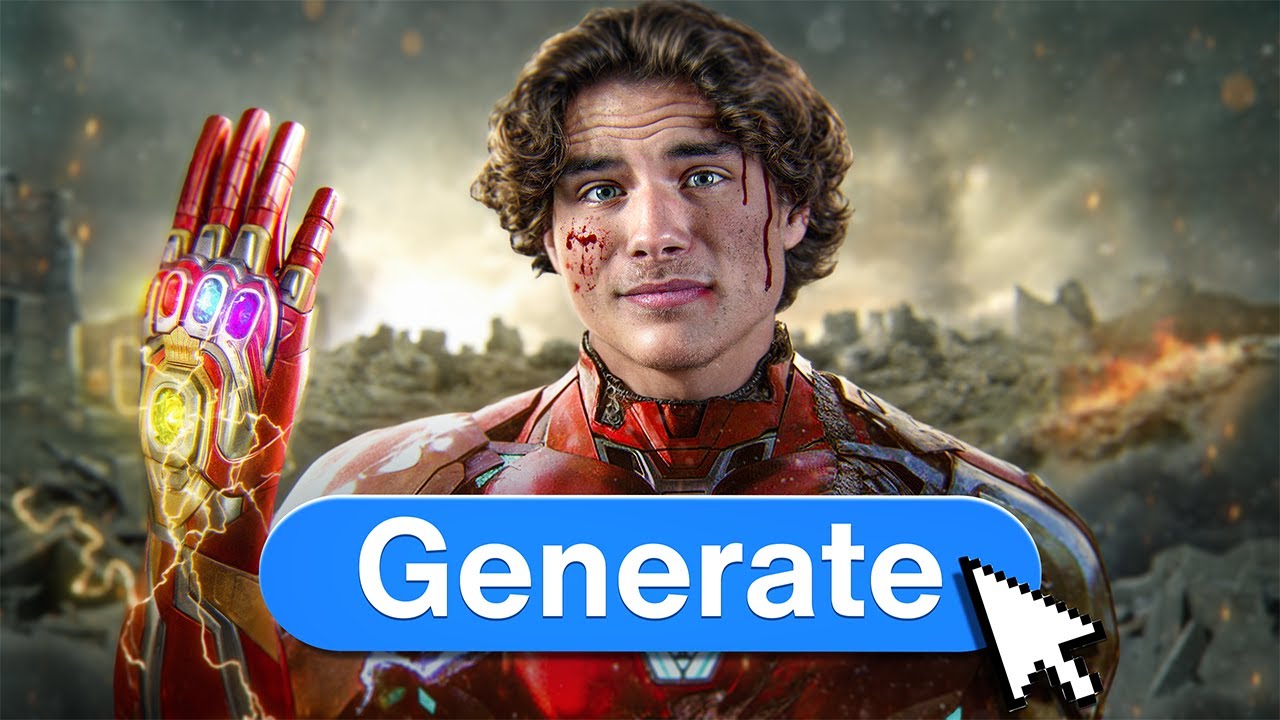
AI video technology is evolving at a breakneck pace—every two days, it gets significantly better. According to expert video editors, we’ve now reached a turning point: AI tools are not just experimental novelties but daily-use essentials in professional editing workflows. Among the latest breakthroughs is Higsfield’s Popcorn editor, a revolutionary AI-powered photo and video generator that enables creators to drop real people into cinematic scenes, relight footage, generate custom B-roll, and maintain perfect character consistency—all while sounding and looking authentic.
This comprehensive guide unpacks every technique, tip, and workflow revealed in a hands-on demonstration of Popcorn. Whether you’re producing investigative exposés, business explainers, or faceless YouTube channels, you’ll learn exactly how to make Hollywood-quality videos using AI—without a Hollywood budget.
Why Popcorn Stands Out in the AI Video Landscape
While tools like Nano Banana have been popular in the past, Popcorn introduces critical improvements that make it the first truly usable AI tool for professional editing workflows. The standout feature? Character consistency—ensuring that when you insert a real person into multiple scenes, they look like the same person across all shots.
In a direct comparison, when asked to replace an older man with Margot Robbie in a scene, Popcorn delivered exactly what was requested, while Nano Banana produced inconsistent or inaccurate results. Additionally, unlike heavily censored models such as Sora 2, Popcorn currently operates without restrictive content filters, enabling broader creative freedom.
Getting Started with Higsfield’s Popcorn Editor
To begin, navigate to Higsfield and select Popcorn. You’ll be presented with two modes:
- Auto Mode: Ideal for quick, prompt-based generation
- Manual Mode: Best for precise control over scenes, characters, and consistency
Both modes support image-to-video conversion, style transfer, and multi-scene storytelling—making Popcorn versatile for everything from documentary B-roll to animated explainers.
Creating Custom B-Roll for Investigative or Documentary-Style Videos
Imagine producing a Coffeezilla-style investigation into a scammer. Popcorn allows you to generate cinematic B-roll that matches your narrative tone—even if you only have a single photo of yourself.
Step-by-Step: Auto Mode B-Roll Generation
- Upload a photo of yourself (or your subject)
- Enter a descriptive prompt: “The male detective searches for clues in an unsolved illegal scam case. This is vintage cinema in black and white.”
- Select the number of output images and desired dimension (e.g., 16:9 for YouTube)
- Generate the images
- Convert the images into videos using Popcorn’s video tools
- Layer the clips into your main edit as B-roll
This process transforms a simple talking-head video into a cinematic experience with minimal effort.
Using Cartoon Styles to Hide AI Artifacts and Boost Production Value
If realism isn’t your goal—or if you want to avoid the “uncanny valley”—Popcorn excels at cartoon-style generation. These outputs are so stylized that viewers can’t tell they’re AI-generated, giving your video a high-budget animated look at zero cost.
Example Workflow: Government Investigation in Cartoon Style
- Upload your subject’s photo
- Write a prompt: “This man is looking through piles of documents. He’s in a boring government building. This is a cartoon style.”
- Set output count and dimensions
- Generate and download the images
- Convert to video for seamless integration
The result? Professional-looking animated segments that would otherwise require a full animation team.
Generating Contextual Evidence Scenes with Multi-Image Prompts
For narrative depth, Popcorn supports multi-image referencing. In an investigation video, if you mention finding pill bottles in a scammer’s room, you can create a compelling visual without filming on location.
How to Create an Evidence Room Scene
- Upload two images:
- Image 1: A photo of yourself
- Image 2: A pill bottle (or any object)
- Write a prompt: “The man is seen in an evidence room holding the object from image 2.”
- Generate multiple variations
- Convert to video for dynamic B-roll
This technique adds visual credibility and storytelling immersion to factual content.
Relighting Scenes Using Reference Images
Popcorn can also relight existing photos to match a desired cinematic mood—no studio lighting required.
Relighting Workflow
- Upload your base image (Image 1)
- Upload a reference image with your desired lighting (Image 2)
- Enter the prompt: “Relight image one to match image two lighting.”
- Generate the relit version
- Optionally convert to video for motion
This is invaluable for matching disparate footage or creating dramatic lighting effects in post-production.
Mastering Manual Mode for Maximum Creative Control
When precision matters—especially for character consistency across scenes—Manual Mode is the answer. This mode lets you upload multiple assets and script each scene individually.
Manual Mode Setup Process
- Upload all necessary images:
- Character photos (e.g., your client)
- Background/environment scenes (e.g., office spaces, movie stills)
- Write scene-specific prompts for each output
- Choose output dimensions (e.g., 16:9 for YouTube, 9:16 for Instagram)
- Generate and download each scene
Real-World Example: Motivational Business Speaker in Cinematic Office Scenes
Suppose your client is a bald executive discussing sales team motivation. Here’s how to place them in professional cinematic contexts:
- Take a screenshot of the client
- Find two office-style background images (e.g., from stock sites or movie stills)
- In Manual Mode, upload:
- Image 1: Client photo
- Image 2: Second character (optional)
- Image 3: First office background
- Image 4: Second office background
- Write prompts:
- Prompt 1: “Put the character from image one and the character from image two in the same position as the characters in image 3.”
- Prompt 2: “Put the character from image one and the character from image two in the same position as the characters in image 4.”
- Generate both scenes in 16:9 format
The result: two consistent, professional-looking scenes featuring your client in dynamic office environments.
Adding Realistic Lip Sync with Custom Audio
To make AI-generated videos truly believable, lip sync is essential. Popcorn includes a dedicated lip sync feature that matches mouth movements to real audio.
Lip Sync Workflow
- In your editing software, isolate the client’s voiceover audio
- Download the audio file
- In Higsfield, hover over Video and select Lip Sync
- Upload the client’s photo
- Upload the audio file
- Optionally add a descriptive prompt (e.g., “Professional businessman speaking confidently in an office”)
- Generate the synced video
- Repeat for additional scenes
This ensures your AI-generated speaker sounds and looks authentic, preserving vocal tone and personality.
Enhancing Video Quality with Topaz Upscaling
After generating your clips, Popcorn integrates with Topaz for AI-powered upscaling—critical for maintaining sharpness in final outputs.
Topaz Integration Steps
- Hover over your generated video in Higsfield
- Select Topaz
- Choose upscale factor (e.g., x2)
- Press Generate
This step ensures your AI footage meets broadcast or YouTube quality standards.
Creating Viral 3D-Style Animation Without 3D Software
Popcorn simplifies the creation of 3D-animated-style content—a trend seen in viral faceless YouTube channels. Previously, inconsistent character rendering made this impractical. Now, with Manual Mode, you can achieve perfect continuity across scenes.
3D Mannequin Animation Workflow
- Find a reference image of a white 3D mannequin (search “white mannequin 3D model”)
- Upload the image to Popcorn
- Switch to Manual Mode
- Select number of scenes (e.g., 5)
- For each prompt, start with: “Cinematic white mannequin”
- Add unique actions:
- “Shaking hands”
- “Trying on a suit”
- “Holding money”
- “Stepping inside a car”
- “Petting a dog”
- Generate all scenes
All outputs will share the same mannequin design, enabling seamless editing.
Converting Static Images to Dynamic Video with 1.2.5 Generator
Once you’ve generated your consistent mannequin images, use a video generator like 1.2.5 to add motion:
- Upload one mannequin image to 1.2.5
- Write a simple motion prompt:
- “The mannequin steps into the car”
- “The mannequin slowly holds up the money with subtle movements”
- Generate the video
- Repeat for all five images
The result is a cohesive, animated sequence perfect for faceless monetized channels.
Advanced Prompt Engineering for Complex Results
While simple prompts work well, detailed prompts yield more cinematic and accurate outputs. For example, when mimicking a specific screenshot or art style, include:
- Lighting description (“dramatic side lighting”)
- Camera angle (“low-angle shot”)
- Mood (“tense, noir atmosphere”)
- Character pose (“confident stance, hands in pockets”)
Even small additions like “subtle movements” or “cinematic shallow depth of field” can dramatically improve realism.
Building a Faceless YouTube Channel with AI
Popcorn enables creators to launch high-quality faceless channels with minimal resources. By combining consistent character generation, lip-synced voiceovers, and cinematic B-roll, you can produce content that rivals traditional studios.
Tool Comparison: Popcorn vs. Nano Banana
The transcript highlights a critical functional difference between Popcorn and older tools like Nano Banana. Below is a detailed comparison:
| Feature | Popcorn | Nano Banana |
|---|---|---|
| Character Consistency | Excellent—maintains identity across scenes | Poor—inconsistent results |
| Prompt Accuracy | Delivers exactly what’s requested (e.g., Margot Robbie replacement) | Often misinterprets prompts |
| Content Censorship | Minimal restrictions reported | Not discussed, but Popcorn noted as less censored than Sora 2 |
| Manual Scene Control | Yes—multi-image, multi-prompt workflow | Limited or absent |
| Professional Workflow Integration | Designed for daily editing use | More experimental |
Step-by-Step Summary: Full AI Video Production Pipeline
Here’s the complete workflow to make Hollywood-quality videos using Popcorn:
| Step | Action | Tool/Feature |
|---|---|---|
| 1 | Plan narrative and gather assets | Client photo, reference images, voiceover audio |
| 2 | Generate B-roll or scene images | Popcorn Auto or Manual Mode |
| 3 | Add motion to images | Popcorn Video Generator or 1.2.5 |
| 4 | Apply lip sync to talking scenes | Popcorn Lip Sync |
| 5 | Upscale final clips | Topaz via Popcorn |
| 6 | Edit and layer into final timeline | Premiere Pro, DaVinci Resolve, etc. |
Troubleshooting Common AI Video Challenges
The speaker notes that earlier attempts at AI animation failed due to inconsistent characters. Popcorn solves this through:
- Manual Mode’s asset-based prompting (uploading the same character photo repeatedly)
- Style anchoring (starting all prompts with the same descriptor, e.g., “cinematic white mannequin”)
- Multi-image referencing to lock poses and environments
If outputs still vary, try reducing prompt complexity or using more reference images.
Practical Use Cases Beyond Entertainment
While cinematic flair is exciting, Popcorn’s real power lies in enhancing non-fiction content:
- Business videos: Place speakers in leadership-themed movie scenes
- Educational content: Visualize abstract concepts with custom illustrations
- Investigative journalism: Recreate scenes without access to locations
- Marketing: Generate product-in-context visuals from a single photo
Future-Proofing Your Editing Workflow
With AI video improving every 48 hours, tools like Popcorn represent the future of post-production. Editors who integrate these capabilities now will:
- Reduce production time by 70%+
- Lower costs (no need for location shoots or actors)
- Increase creative flexibility
- Deliver more engaging content that retains viewers
Where to Access Popcorn and Start Creating
Popcorn is available through Higsfield and offers a free trial. Visit the platform, select Popcorn, and begin experimenting with either Auto or Manual Mode. The speaker encourages users to “give it a try for free” via the link provided in the original video description.
Final Thoughts: The Democratization of Hollywood-Quality Production
We are witnessing the democratization of cinematic storytelling. What once required million-dollar budgets, crews, and studios can now be achieved by a single editor with a photo, a prompt, and Popcorn. The key is not just using AI—but using it strategically to enhance narrative depth, emotional impact, and viewer engagement.
As AI continues to evolve, the barrier between amateur and professional video will vanish. The question isn’t if you should adopt these tools—it’s how soon you can start making Hollywood-quality videos today.